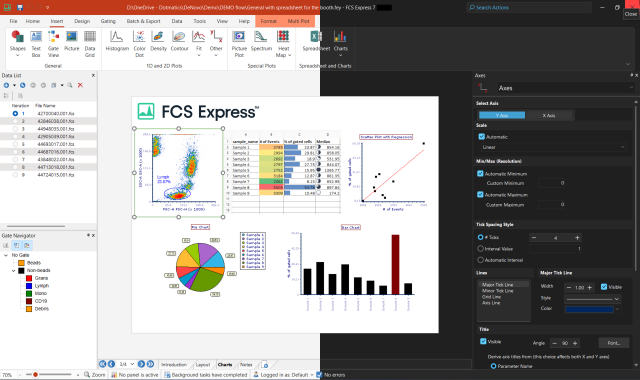
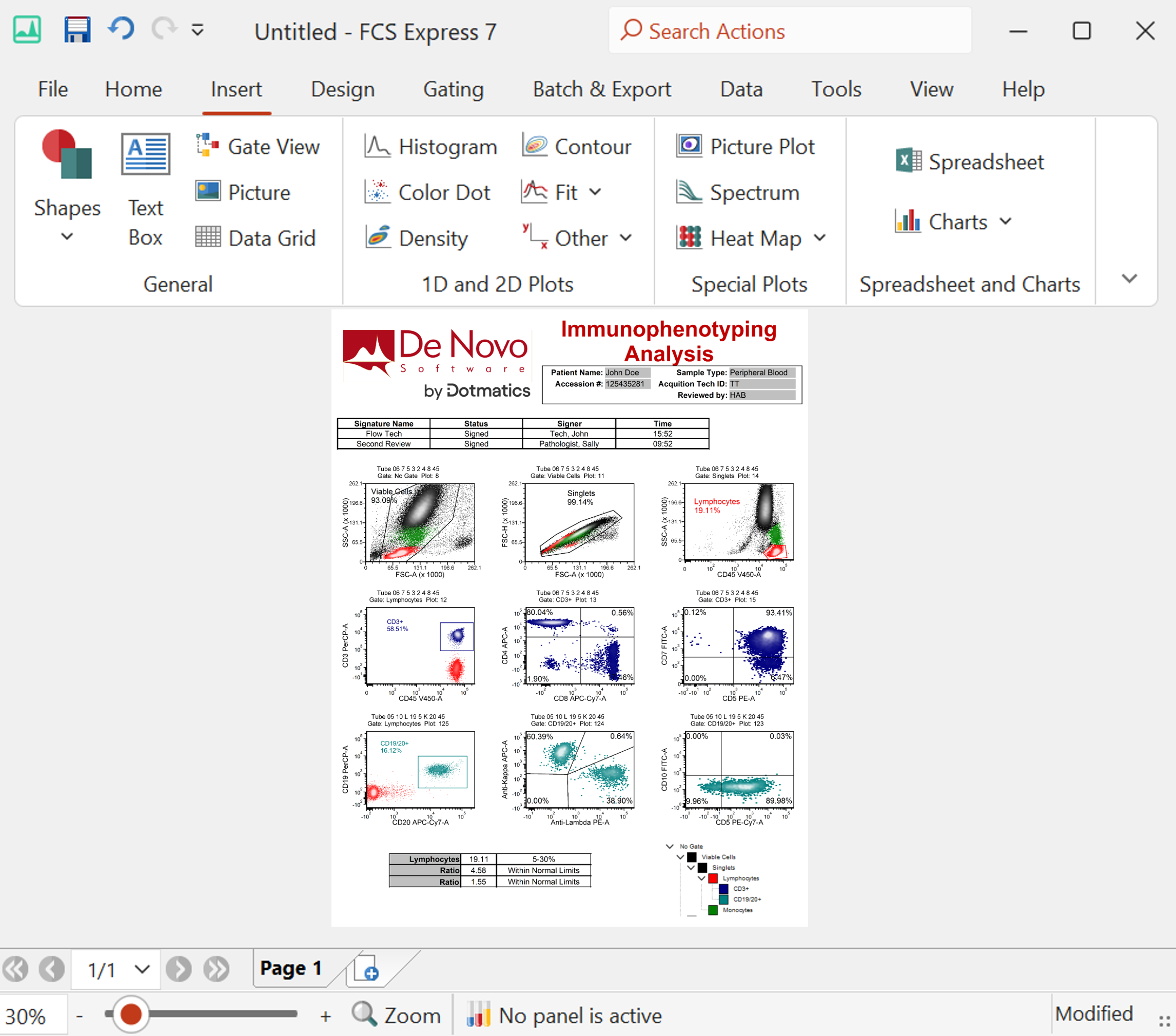
FCS Express was designed to be intuitive and easy to use. It is based on the familiar Powerpoint® interface, which is familiar to everyone in the life sciences. All objects placed on a layout can be manipulated using standard Microsoft Windows techniques


Advanced User Interface

FCS Express possesses an advanced user interface found only is some of the most sophisticated products available.

advanced user interface

The Taskbar on the right works similarly to the one in Microsoft Powerpoint. You can choose one of many predefined layouts to apply to your page. Once you have chosen a layout, its a simple matter to click to insert the plot type that you desire. You then choose the file that you want to display, and the plot appears in the right place at the desired size.

The image above shows an example of our Floating Toolbars. You can position the toolbars anywhere that you like, as well as turn then on or off.  

You can also see in the bottom left that you can change the Zoom. FCS Express supports zooming from 10-400%!!!

Unlimited UNDO

With FCS Express, you never have to worry about making a mistake again. Every action in FCS Express can be undone, similar to popular Microsoft Office products. FCS Express supports multilevel undo, so you can go back as far as you like.

The new text FCSE Good
Undo your changes Undo Text Box Change
The original text appears FCS Express is Great

Manipulating Objects

Objects in FCS Express support many different features:

  • Copy
  • Cut
  • Paste
  • Delete
  • Duplicate
  • Align 
  • Group
  • Order (bring to front, send to back, etc..)

Furthermore, any object can be copied to the clipboard as a high resolution graphic, for publication quality images.

Copy as picture

Below is an example of multiple plots and a text box grouped together. The borders of the objects are red to denote that they are in selected mode. Since they are all selected, resizing one item will resize them all. The same applies for other features such as copying, deleting etc.


grouped objects


Formatting Objects

Making changes to any object in FCS Express is as easy as right-clicking. Every possible action appears on the pop up menu when you right click. To alter your plot or statistics, simply right click on the item and select your action from the drop down list that appears. The example below illustrates how easy it is to change a statistics window by right-clicking.

right click

The example below shows the options you have when changing a 2D plot.

plot format popup menu 
 
Powerpoint is a Registered Trademark of Microsoft Corporation


De Novo Software